


How to Install Bosch Rexroth DriveTop Software in 8 Easy Steps
Industrial Automation Explained27 August, 2026 | Bosch Rexroth, DriveTop, DriveTop Software, Install DriveTop, DriveTop DKC, DKC, DKC01.1-030-3-FW, DKC03.3-040-7-FW, Indramat, Indraworks, Rexroth DriveTop installer, Bosch Rexroth Indramat software, DKC drive commissioning,Bosch Rexroth DriveTop download, Indramat DriveTop software, DriveTop DKC connection
Click here to skip to the installation steps.
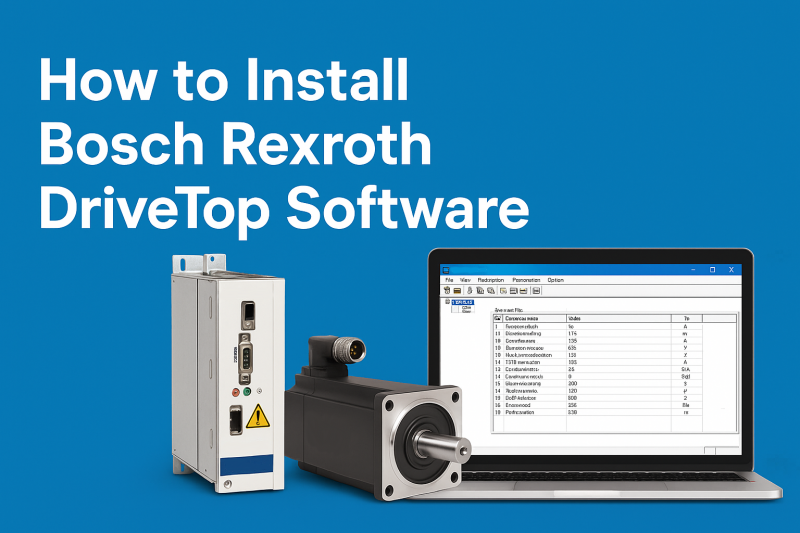
Bosch Rexroth DriveTop is legacy engineering software used to commission, parameterize, diagnose, and archive settings from Indramat drive controllers. It can communicate online with EcoDrive, DIAX, and supported early IndraDrive systems through serial, SERCANS, or qualifying fieldbus connections. DriveTop also supports offline configuration for compatible EcoDrive and DIAX systems.
A successful DriveTop installation depends on more than running the setup file. The software release must support the drive’s installed firmware, the computer needs the correct communication interface, and the cable must match the exact controller generation. Before changing a parameter, save the existing drive configuration so it can be recovered if a replacement or adjustment does not operate as expected.
If your DKC controller has a hardware fault, will not power up, or needs repair or replacement, contact Wake Industrial. Call 1-919-443-0207, email sales@wakeindustrial.com, or request a Rexroth Indramat drive quote.
Important: Wake Industrial provides this DriveTop installation guide as general reference information. Wake does not provide DriveTop software troubleshooting by phone or email. Drive commissioning and electrical work must be completed by qualified personnel using the safety procedures and documentation for the exact drive and machine. Wake Industrial shall not be held liable for any direct, indirect, incidental, or consequential damages to products or individuals resulting from the use of this information.
What Does DriveTop Software Do?
DriveTop places drive parameters, operating data, diagnostics, and commissioning functions into a Windows-based interface. In online operation, the computer communicates directly with the controller. Parameter changes entered in an active online dialog can be written directly to the drive and become effective immediately.
DriveTop Function | Purpose |
Online parameterization | Reads and changes supported drive parameters through a live connection |
Diagnostics | Displays drive status, fault messages, command values, actual values, power status, and installed component information |
Parameter backup | Saves the connected drive’s current parameters to a file on the computer |
Parameter restoration | Loads an archived parameter file into a compatible controller |
Offline configuration | Creates or reviews supported EcoDrive and DIAX configurations without a connected drive |
Drive setup | Organizes motor, controller, feedback, operating-mode, and control-loop settings |
Oscilloscope functions | Records supported operating values for commissioning and motion analysis |
These functions make DriveTop particularly useful when servicing legacy DKC controllers. For example, the DKC01.1-030-3-FW is an early EcoDrive controller for which parameter archiving can simplify a like-for-like hardware exchange.
Choose the Correct DriveTop Version
Bosch Rexroth currently provides DriveTop 01VRS, 04VRS, and 16VRS as active software downloads. Each package has its own material number and supported drive-firmware combinations.
| DriveTop Release | Bosch Rexroth Material Number | Download Size | Official Download |
| DriveTop 01VRS | R911261075 | 2.91 MB | Download DriveTop01VRS |
| DriveTop 04VRS | R911274702 | 6.27 MB | Download DriveTop04VRS |
| DriveTop 16VRS | R911295178 | 50.23 MB | Download DriveTop16VRS |
Select the release by checking the complete firmware type code, not only the DKC hardware number. DriveTop 16VRS supports specified ECODRIVE, ECODRIVE03, DIAX03, DIAX04, SERCANS, and early IndraDrive firmware families. Compatibility still depends on the firmware family and release installed in the controller.
A controller number ending in -FW, such as, DKC03.3-040-7-FW identifies hardware supplied under an ordering structure in which firmware is a separate item. The DKC hardware number alone does not identify the complete firmware package. Record the full FWA- firmware code before selecting DriveTop.
DriveTop System Requirements
The manufacturer information packaged with DriveTop 16VRS specifies the following system requirements:
- Intel 486-class computer minimum, with a Pentium 166 or faster processor recommended
- Microsoft Windows 95, Windows 98, Windows NT 4.0, Windows 2000, or Windows XP
- At least 32 MB of memory
- At least 60 MB of available disk space
- Write access to the DriveTop installation and common-file directories
Windows 10 and Windows 11 are not included in the manufacturer’s listed operating systems for DriveTop 16VRS. If a current computer must be used, the installation environment should be evaluated and controlled by the facility’s automation and IT personnel. Do not assume that an installation on a newer operating system has the same communication behavior as the manufacturer-listed legacy environment.
DriveTop Preinstallation Checklist
Prepare the following information and equipment before opening the installer:
Required Item | What to Confirm |
DKC controller type code | Record the complete number from the controller nameplate |
Firmware type code | Record the complete FWA code and firmware release |
DriveTop package | Select a release that supports the installed firmware |
Windows computer | Use an operating environment appropriate for the selected DriveTop release |
Serial interface | Confirm the computer’s COM port or validated serial adapter |
Communication cable | Match the cable and pinout to the DKC generation |
Parameter-file location | Create a controlled folder for the original backup |
Drive documentation | Use the operating, project-planning, and firmware documentation for the exact controller |
Machine safety controls | Secure the axis and prevent unintended motion before connecting or changing parameters |
Do not begin a replacement transfer until the new controller’s complete type code and firmware have been checked. A similar current rating or DKC series number does not establish full compatibility.
Safety Before Connecting DriveTop
Indramat drive controllers contain dangerous voltages and can generate unexpected motor movement. Disconnecting or replacing drive components requires the main power to be switched off, secured against reconnection, and verified according to the machine’s lockout procedure. Do not separate live connections.
The DKC01.1 and DKC11.1 exchange procedure specifies waiting at least one minute for the capacitors to discharge before touching connecting lines or terminals. Other controllers may require different discharge procedures, so follow the instructions for the exact model.
Parameter changes can affect torque limits, velocity limits, feedback configuration, operating modes, travel limits, and motor behavior. Keep drive enable removed and mechanically secure the axis until the configuration has been reviewed and the machine is ready for controlled testing.
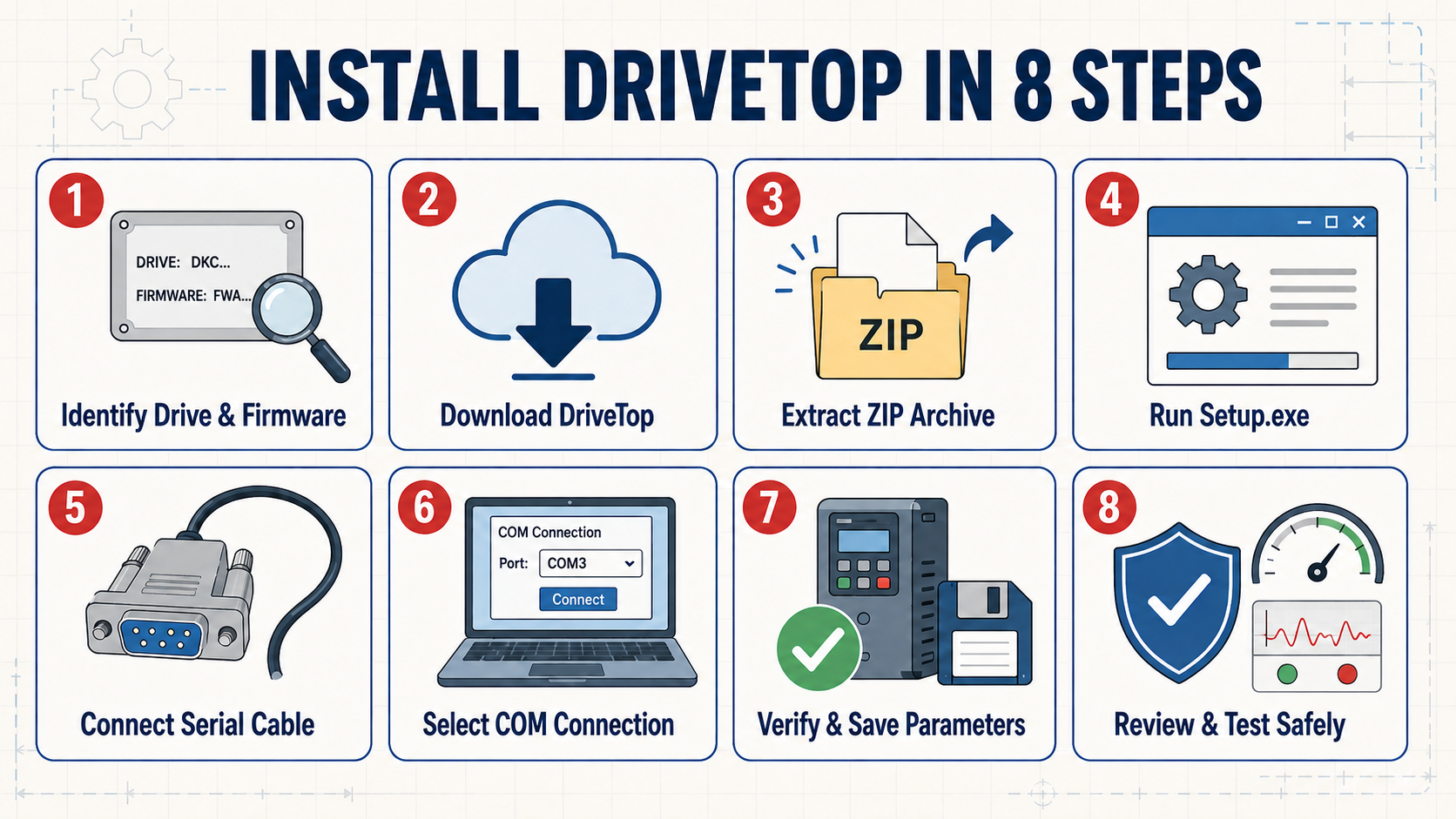
How to Install DriveTop in Eight Steps
1. Identify the Drive and Firmware
Record the controller’s complete type code, serial number, and installed firmware code before downloading software. Photograph the nameplate and firmware label so the information remains available if the controller is removed from the machine.
This is particularly important with controllers such as the DKC03.3-040-7-FW and DKC02.3-040-7-FW. Although both are 40 A EcoDrive03 controllers, they have different master-communication configurations. The DriveTop connection and parameter file must be evaluated against the complete hardware and firmware arrangement.
2. Download DriveTop From Bosch Rexroth
Download the selected DriveTop package from the official Bosch Rexroth media page. The package is supplied as a ZIP archive with a material-number filename such as R911295178.zip for DriveTop 16VRS.
Store the original ZIP file in a controlled software directory. Keeping the original package makes it easier to reinstall the same release on a service computer later.
3. Extract the Complete ZIP Archive
Extract the complete archive before running the installer. Do not launch Setup.exe from inside the compressed folder because the installer needs access to its cabinet files, shared components, configuration files, and device data.
For DriveTop 16VRS, the extracted package includes Setup.exe, installation cabinet files, shared DriveServer components, offline configuration data, and a release-specific readme.
4. Run Setup.exe
Sign in with an account that can install software and write to the required directories. Open the extracted folder and run Setup.exe. Follow the installation prompts, select the appropriate language, accept the software terms, and use the required installation directory.
After installation, verify that DriveTop appears in the Indramat or Bosch Rexroth program group. The software must retain write access to its installation directory and the shared Indramat files. Missing permissions can prevent DriveTop from saving configuration data or starting its supporting programs correctly.
5. Connect the Correct Serial Cable
The required connection depends on the controller generation.
For DKC01.1 and DKC11.1 controllers, the RS-232 interface is located at X1. The manufacturer documentation identifies an IKS101 cable for a computer with a 9-pin D-sub connector and an IKS102 cable for a 25-pin computer connector. The specified RS-232 cable length is limited to 15 meters.
For EcoDrive03 DKC**.3 controllers, DriveTop parameterization normally uses the X2 serial interface with an IKB0005 cable. The specified RS-232 connection is also limited to 15 meters and supports one directly connected drive at a time.
This EcoDrive03 arrangement applies to models such as the DKC03.3-040-7-FW and the larger DKC01.3-200-7-FW. Confirm the connector, cable number, and pinout before connecting the computer.
6. Start DriveTop and Select the Connection
Launch DriveTop and select the serial communication option for EcoDrive or DIAX equipment. DriveTop starts its supporting communication programs according to the selected connection type.
Open the communication settings and choose the COM port connected to the drive. Early DKC01.1 and DKC11.1 systems support fixed baud-rate selection or an automatic baud-rate search. During an automatic search, DriveTop locates an available drive and scans the applicable addresses. An RS-485 network must not contain duplicate drive addresses because duplicate addresses can cause bus collisions.
If the computer uses more than one COM port, confirm the assigned port in Windows before scanning. No other program should be controlling the same port.
7. Verify the Drive and Save Its Parameters
After DriveTop finds the controller, verify that the displayed controller, firmware, motor, and installed components match the physical system. The online diagnostic window can display:
- Drive status and diagnostic messages
- Command and actual values
- Power and status signals
- Type descriptions for detected components
Before changing anything, use the parameter menu’s Save File function to store the connected controller’s current parameters on the computer. Give the file a descriptive name containing the machine, axis, DKC type code, firmware release, and backup date.
For example:
Line2_Infeed_DKC03.3-040-7-FW_FGP03_2026-08-27.par
Keep an untouched copy of the original backup. The file may be needed if the controller is repaired, replaced, or returned to its previous configuration.
8. Review the Configuration and Test Safely
Review the saved parameter file and confirm that the operating mode, motor data, feedback settings, limits, and command interface agree with the machine documentation. Do not enable motion until the configuration has been independently checked.
When testing, begin with the machine secured and use the commissioning procedure established for that system. Monitor the drive display, diagnostic window, actual values, and machine safety circuits. Stop immediately if the axis moves unexpectedly or the drive identifies a configuration error.
Loading Parameters Into a Replacement DKC
DriveTop’s Load File function can transfer an archived parameter set into a compatible controller. Its Load Base Parameters function restores standard parameter values and overwrites existing settings. These two functions should not be treated as interchangeable.
The replacement controller should have the same complete type-code configuration as the removed unit. Firmware family, firmware release, communication interface, motor feedback, and other system requirements must also be checked before loading the archived file.
A saved parameter file reduces recommissioning work, but it does not make a different controller automatically compatible. After a parameter transfer, verify the detected hardware and motor data before enabling the axis.
If the original controller cannot communicate long enough to create a backup, search the machine’s maintenance records, service laptop, removable media, and previous repair documentation for an existing parameter file. Avoid creating substitute values from memory.
DriveTop Connection Problems
| Symptom | Items to Check |
| No drive found | Confirm that the drive has the required control voltage and that the serial cable is connected to the correct interface |
| COM port unavailable | Close other programs using the port and verify the assigned Windows COM number |
| Scan completes without a connection | Check the cable number, pinout, communication mode, drive address, and baud-rate selection |
| Unstable serial communication | Inspect shielding, grounding, cable length, adapter configuration, and electrical noise around the serial line |
| DriveTop will not start | Verify the listed operating-system environment, installation permissions, and required legacy database components |
| Motor selection is unavailable | Repair or reinstall the DriveTop database components included with the selected release |
| Parameter warnings appear | Recheck the DriveTop release against the controller’s complete firmware code |
| Several RS-485 drives respond incorrectly | Verify that every drive has a unique address and uses the same baud rate |
A communication failure does not automatically mean that the controller is defective. Control-voltage loss, an incorrect cable, the wrong COM port, or a firmware mismatch can prevent DriveTop from detecting a functional drive.
DriveTop also cannot correct a failed power stage, damaged control supply, burned connector, defective feedback circuit, or other physical controller fault. If the DKC will not power, repeatedly faults after the external conditions have been checked, or cannot retain its parameters, the hardware may require professional evaluation.
Get Help With a Failed Indramat DKC Drive
DriveTop provides an effective way to archive parameters, examine diagnostics, and commission supported Bosch Rexroth Indramat controllers. Reliable results depend on matching the software to the installed firmware, using the specified serial interface and cable, preserving the original parameter set, and testing the drive under controlled conditions.
When the problem is inside the controller rather than the software connection, Wake Industrial can provide repair, refurbishment, or replacement options for DKC01.1, DKC01.3, DKC02.3, DKC03.3, and other legacy EcoDrive configurations.
Call 1-919-443-0207, email sales@wakeindustrial.com, or use the quote form today.
Request a Quote

Cary, NC 27513